Selecting or highlighting text is one of the easiest task in Windows. It's a thing which even novice computer users are familiar with. If you're a blogger then you've to copy and paste text hundreds of times in a week! But do you know there are multiple ways for text selection? Yes! All of you might not be familiar with this feature Windows operating system.
Today, in this tutorial I will show you various tips and tricks for selecting texts in a much easier way. Excited? Then read below.
Select one character at a time
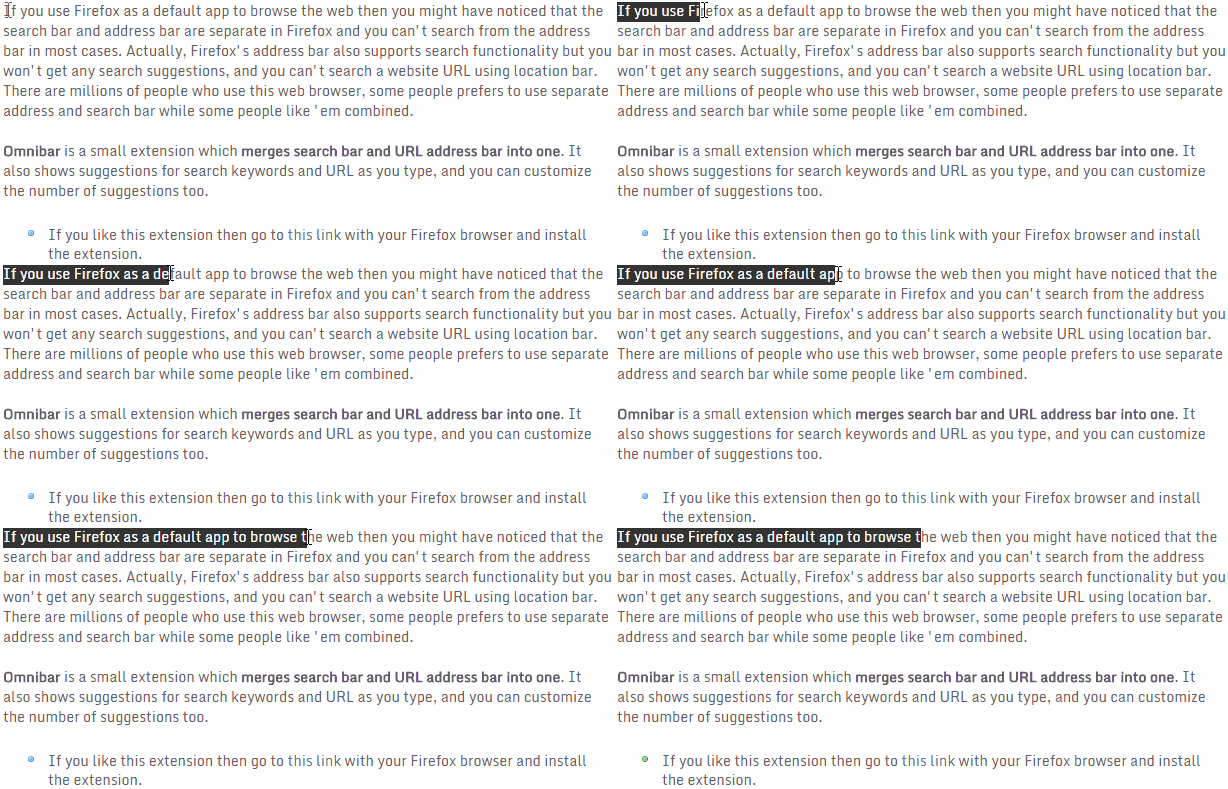
It's easy and you already know this. Click ONCE right before the character you want to copy and pull the mouse cursor over the text you want to select/highlight, the text selection will advance by one character as you pull your cursor over it.
Select one word at a time
You might not be familiar with this. If you'll double click your mouse before you begin selecting the text then text selection will advance by highlighting one word at a time.
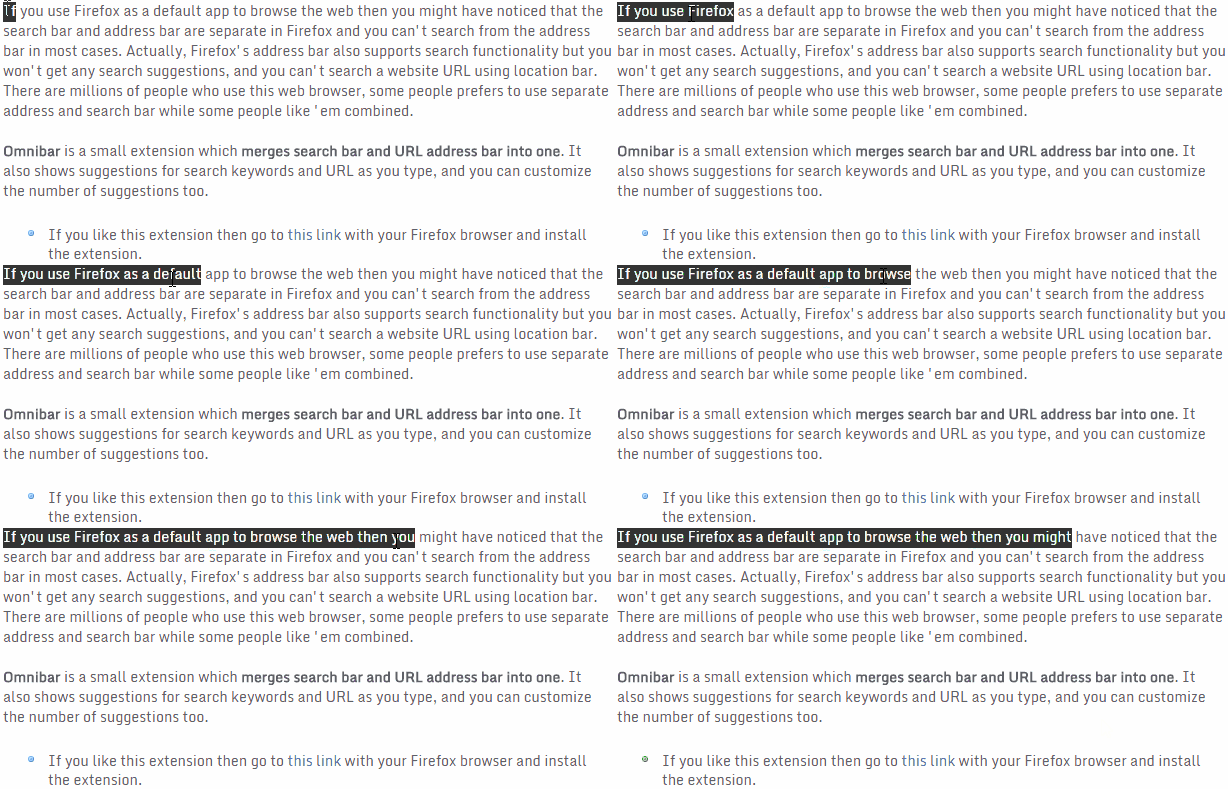
Click TWICE right before the word you want to select and pull your mouse cursor over the text, interestingly text selection will advance by highlighting one word at a time. Similarly, you can double click on a word to highlight it.
Select one paragraph at at time
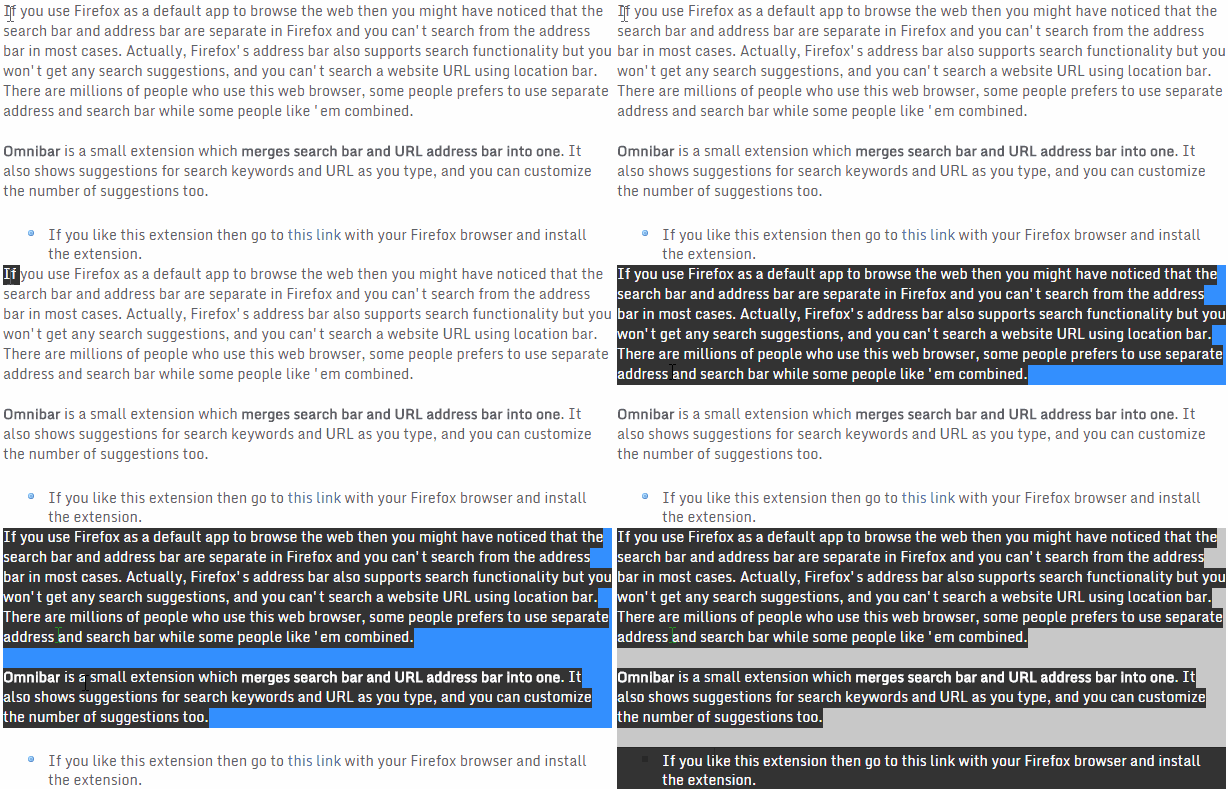
Triple click on any of the paragraph on this post to highlight the whole paragraph. If you want the text selection to advance by one paragraph as you move your mouse then click THRICE on the first paragraph and pull your cursor downward (or upward).
This trick will completely work on all the versions of Windows but I am not familiar with other operating systems like Mac OS or Chrome OS.
Today, in this tutorial I will show you various tips and tricks for selecting texts in a much easier way. Excited? Then read below.
Select one character at a time
It's easy and you already know this. Click ONCE right before the character you want to copy and pull the mouse cursor over the text you want to select/highlight, the text selection will advance by one character as you pull your cursor over it.
Select one word at a time
You might not be familiar with this. If you'll double click your mouse before you begin selecting the text then text selection will advance by highlighting one word at a time.
Click TWICE right before the word you want to select and pull your mouse cursor over the text, interestingly text selection will advance by highlighting one word at a time. Similarly, you can double click on a word to highlight it.
Select one paragraph at at time
Triple click on any of the paragraph on this post to highlight the whole paragraph. If you want the text selection to advance by one paragraph as you move your mouse then click THRICE on the first paragraph and pull your cursor downward (or upward).
This trick will completely work on all the versions of Windows but I am not familiar with other operating systems like Mac OS or Chrome OS.
Comments
Post a Comment