How to Enable Authentication Icon for Verified Senders in GMail

Spammers can spoof a message to make it look like it's sent by a company you might trust. Recently, hackers tried to access Google Accounts of Gmail users through a fake Google Docs file! The scam was very convincing and it attempted to persuade users to open a document, and the users who tried to open the doc was redirected to a legitimate Google Sign-in page to grant permissions to a fraud app.
Authentication Icon for Verified Senders in GMail

Managing emails, if you receive a lot of it in a day can be a very difficult task, and there are times when we may unknowingly follow a spoofed email. Today, I will provide a super short tip for Gmail power users among you who tend to receive hundreds of emails in a day.

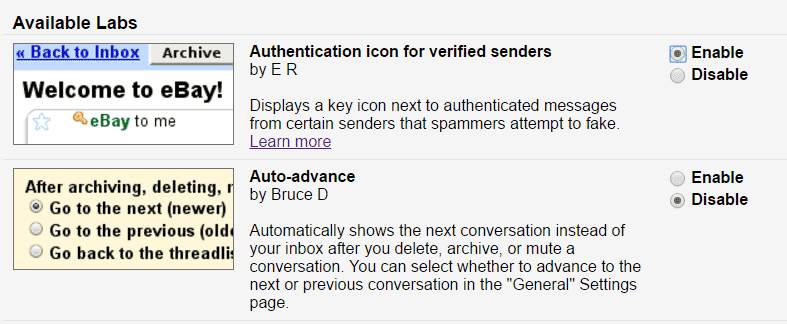
To help you protect from hackers, most email providers tries to verify the real sender using email authentication. As an additional security measure, Gmail allows us to enable "Authentication Icon for Verified Senders" through labs. Follow the following simple steps to enable it now:
  • Open GMail.
Authentication Icon for Verified Senders in GMail
  • Go to Settings > Labs.
  • Scroll down and find the "Authentication Icon for Verified Senders" in the list (it's near the top).
Authentication Icon for Verified Senders in GMail
  • Click on the radio button next to "Enable" in order to select it.
  • Hit the Save Changes button (it's located in the top and bottom of the page).
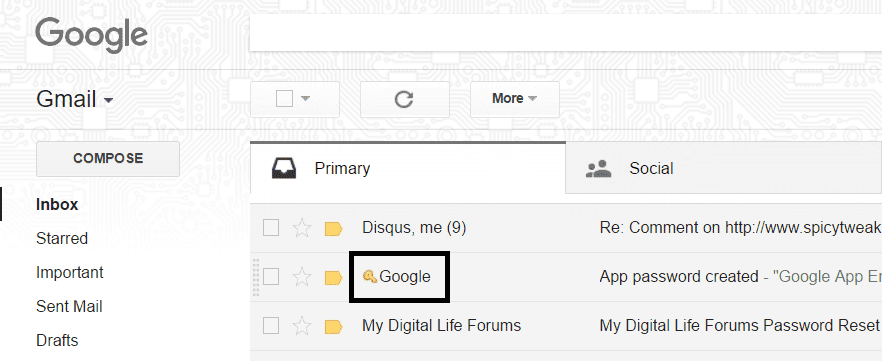
That's all! The tab will reload, and you'll start seeing authentication icon next to the verified senders address. Visit Google Support Page to know more about this feature.

Comments

Popular posts from this blog

How to Get Unlimited Ammo and Health in IGI 2

After many days I am sharing a cool and interesting trick for game lovers. Do you enjoy playing IGI2? Of course you like this game. But many of you may be facing verious difficult situations in completing this game. It's because the missions are really tough and you can't complete whole IGI 2 without using it's cheat codes. There are many hacking tricks for IGI available in the Internet but most of them don't work. And this is the reason I am sharing these cheat codes to you. After reading this post you will be able to play this game without losing any health and ammo. We'll use a lite application to achieve the immortality and infinite number of ammo in this game. You will have to download the software from the link that I will provide you a little later in this post. Let's first know what this software will do. It will allow you to keep your health unlimited in IGI game. And if the health will not decrease then you will never die in the game IGI. You wil...

Block Annoying Ads in Google Chrome with Adblock Plus

Have you ever how some of the ads annoys peoples. Let's say you go to some website to download your favorite song but when you visit that site, you are welcomed with more than two or three pop-ups ads. Some websites keep more that two or three pop-ups and ads, they can place as many as 10 pop-ups on one single page. When you will visit a particular page the pop-ups will be opened automatically. We understand they need money to run their company but they should look for some good ways to show ads rather than showing forced pop-up ads, they can show ads if it that ad is relevant to their users or most of their visits their for that types of readings. Anyway, if you are really annoyed with these pop-up ads and wanted to block them than you can use a Google Chrome extension which is named Adblock Plus. This software can handle these pop-up ads very easily. It will not only block your pop-ups, it will also block the advertisement that is shown in the page too. After installing this app...

Enhancing Productivity with Virtual Desktops in Windows 11

In the fast-paced digital age, multitasking has become an essential skill for maximizing productivity. With the release of Windows 11, Microsoft introduces an enhanced Virtual Desktop feature that empowers users to organize their workspace, manage tasks efficiently, and seamlessly switch between different contexts without the clutter. In this article, we'll delve into the world of Virtual Desktops in Windows 11 and explore how this powerful tool can elevate your productivity to new heights. Task View  The Power of Virtual Desktops Virtual Desktops in Windows 11 provide users with a dynamic way to manage their open applications and tasks. Think of them as separate workspaces, each with its own set of open apps, files, and windows. This allows you to group related activities together, effectively creating a focused environment for different projects, tasks, or workflows. Getting Started with Virtual Desktops Setting up and using Virtual Desktops in Windows 11 is a breeze: 1. Creating...