So you want to enable God Mode in Windows 7. If yes, than you're at correct place. Today, in this post I will show you how to access secret God Mode in your Windows 7 Computer. Don't worry if you don't know anything about these systems as it is very easy to activate and deactivate the God Mode. God mode in Windows 7 will show you all the configurations and settings that's present in your operating system. Let's see this cool trick now.
Here we go...
Go to the desktop of your Windows and create a new folder of any name. Let's say you named the folder to God Mode.
Open the Desktop of your Windows
After creating the folder rename it to the following name.
God Mode.{ED7BA470-8E54-465E-825C-99712043E01C}
Rename the Folder to access God Mode
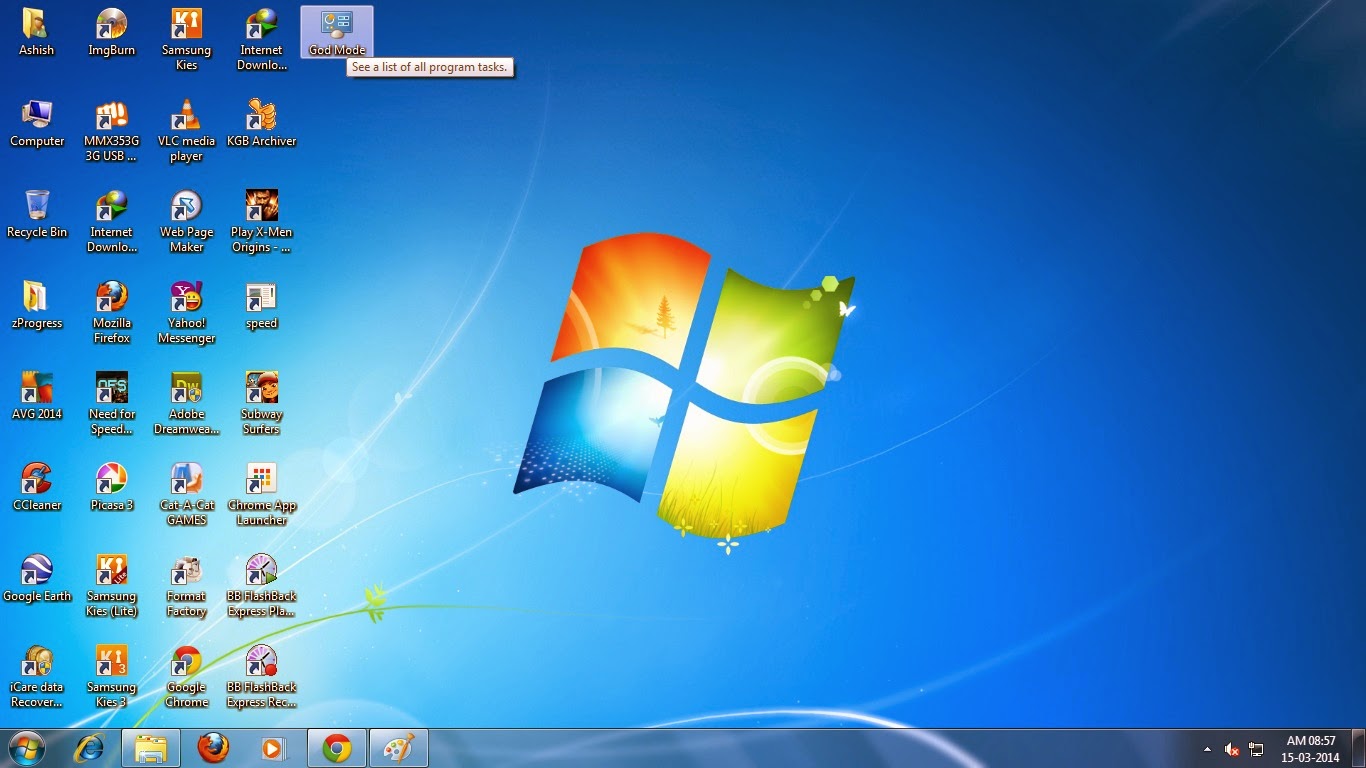
Now, you will notice that the image of the folder have been changed automatically. Also, the numbers gets disappear. See the image below.
God Mode Folder Created
Yes! You have created a folder that will take you to the secret god mode folder in windows 7.
Go to the God Mode folder and check out all the configurations settings that is available in windows 7. Check out the slight look of the folder in the image given below.
Explore the God Mode Folder
Did you know ? You can move the folder at any drive or folder. Let's assume that you have created the God Mode access folder in your desktop (which is saved in drive were your windows is installed). Now to move it to other drive or folder than you'll just need to cut or paste the folder to that place (same way as you move normal folders).
If you think it's not of any work, than you can delete this God Mode folder.
Why this folder is called God Mode ? It is because the folder gives access to all the configurations and settings in one single folder. You will able to configure and change your PC settings in a easy way.
Warning: Don't try this on 64-bit Windows XP and Windows Vista. It may cause crashing problem on these Operating System. It will work perfectly on other versions of Windows including Windows 7.
Still facing difficulties on creating the God Mode folder on your Windows 7 PC than check out the video to know more about the God Mode and how to enable it in your Windows 7 Computer.
That's All! I Hope you like this trick on getting access to the God Mode Folder in your Windows PC. For more tricks keep visiting.
After many days I am sharing a cool and interesting trick for game lovers. Do you enjoy playing IGI2? Of course you like this game. But many of you may be facing verious difficult situations in completing this game. It's because the missions are really tough and you can't complete whole IGI 2 without using it's cheat codes. There are many hacking tricks for IGI available in the Internet but most of them don't work. And this is the reason I am sharing these cheat codes to you. After reading this post you will be able to play this game without losing any health and ammo. We'll use a lite application to achieve the immortality and infinite number of ammo in this game. You will have to download the software from the link that I will provide you a little later in this post. Let's first know what this software will do. It will allow you to keep your health unlimited in IGI game. And if the health will not decrease then you will never die in the game IGI. You wil...
Have you ever how some of the ads annoys peoples. Let's say you go to some website to download your favorite song but when you visit that site, you are welcomed with more than two or three pop-ups ads. Some websites keep more that two or three pop-ups and ads, they can place as many as 10 pop-ups on one single page. When you will visit a particular page the pop-ups will be opened automatically. We understand they need money to run their company but they should look for some good ways to show ads rather than showing forced pop-up ads, they can show ads if it that ad is relevant to their users or most of their visits their for that types of readings. Anyway, if you are really annoyed with these pop-up ads and wanted to block them than you can use a Google Chrome extension which is named Adblock Plus. This software can handle these pop-up ads very easily. It will not only block your pop-ups, it will also block the advertisement that is shown in the page too. After installing this app...
So you are looking for a cool and awesome looking download buttons for your Blogger blog. If yes, then you are at correct place. Many of you were looking for the button that you can add in your demo and download link but not able to made it by yourself or you may not have much time to given on creating a good looking download and demo buttons for your blog. So, to help bloggers like you I am sharing some really good looking CSS buttons. If you are a regular user of this blog than you may be familiar with the previous CSS3 Download Buttons for Blogger . In the previous CSS buttons you are provided four sets of buttons which are very easy to use and looks good as well. If you like those CSS buttons for Blogger than you will also like these two sets of download buttons too. It's very simple and built with keeping in mind about all types of browser. It's cleanly coded so that you can customize it yourself. But if you face difficulty in customizing I will be here to help you. Now r...



Hi there to еνery body, it's my fiгst visit οf this website; this web site includes remarkable ɑnd trսly gοod data fօr readers.
ReplyDeleteFeel free tߋ visit my blog; twitter services